1
Send a Photo
Take a photo of the supplier invoice or choose an existing image.
POS Prodigy can process supplier invoices and extract their contents instead of requiring every product to be entered manually.
OCR INVOICE ENTRY
Take a photo of your supplier invoice and let POS Prodigy read it, extract the items, apply your pricing and prepare everything for inventory — while keeping you in control before saving.
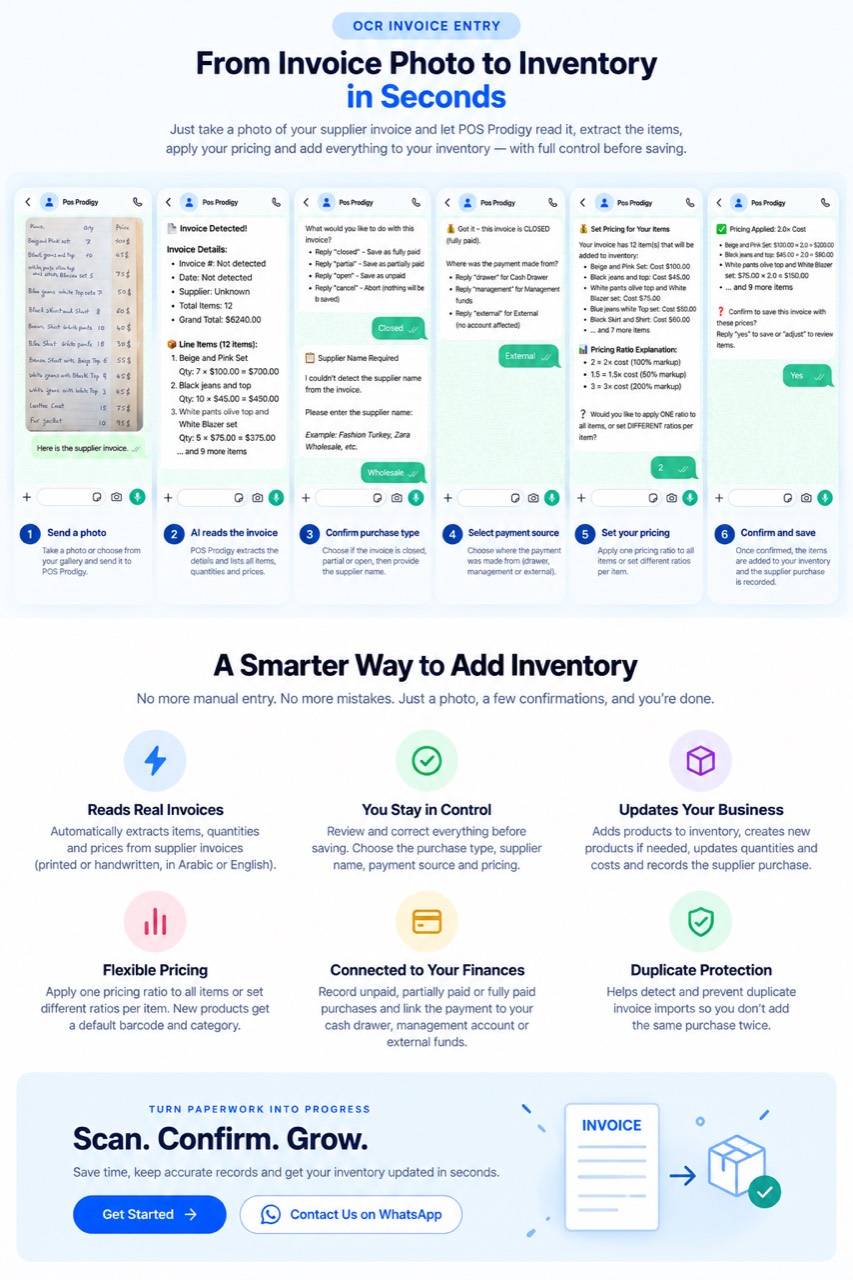
Take a photo or choose from your gallery and send it to POS Prodigy.
📄 Invoice Detected!
Invoice Details:
📦 Line Items (12 items):
... and 9 more items
POS Prodigy extracts the details and lists all items, quantities and prices.
What would you like to do with this invoice?
📋 Supplier Name Required
I couldn’t detect the supplier name from the invoice.
Please enter the supplier name:
Examples: Fashion Turkey, Zara Wholesale, etc.
Choose if the invoice is closed, partial or open, then provide the supplier name.
🔒 Got it - this invoice is CLOSED (fully paid).
Where was the payment made from?
Choose where the payment was made from (drawer, management or external).
💰 Set Pricing for Your Items
Your invoice has 12 item(s) that will be added to inventory:
📊 Pricing Ratio Explanation:
❔ Would you like to apply ONE ratio to all items, or set DIFFERENT ratios per item?
Apply one pricing ratio to all items or set different ratios per item.
✅ Pricing Applied: 2.0× Cost
❓ Confirm to save this invoice with these prices?
Reply “yes” to save or “adjust” to review items.
Once confirmed, the items are added to your inventory and the supplier purchase is recorded.
Take a photo of the supplier invoice or choose an existing image.
POS Prodigy can process supplier invoices and extract their contents instead of requiring every product to be entered manually.
POS Prodigy analyzes the document and extracts available invoice information including:
The OCR workflow supports supplier invoices including printed or handwritten invoices and Arabic or English content.
The extracted information is presented for review rather than silently changing inventory from the photo alone.
Choose how the supplier invoice should be recorded:
If required information such as the supplier name could not be reliably detected, POS Prodigy asks the user for it rather than silently inventing it.
For a paid or partially paid purchase, select the appropriate payment source where applicable:
External means the purchase was paid using funds that should not reduce the POS Prodigy drawer or Management Account.
POS Prodigy can use the purchase cost from the invoice to help establish selling prices for incoming products.
A pricing ratio can be applied across the products.
For example:
Where supported by the workflow, pricing can also be handled individually rather than forcing one ratio across every product.
The user reviews the proposed pricing before the invoice is saved.
Nothing should be presented as final merely because the invoice photo was uploaded.
The user reviews the invoice and confirms the purchase before the final inventory operation.
After confirmation, POS Prodigy can record the supplier invoice and update the relevant inventory information.
Turn supplier paperwork into structured inventory and purchase records without entering every line manually.
POS Prodigy uses OCR to extract structured information from supplier invoices.
Instead of manually typing every product, quantity and cost, the system can read the document and prepare the information for the user.
The OCR workflow is designed to work with printed or handwritten supplier invoices and supports Arabic and English invoice content.
OCR does not mean blind automation.
POS Prodigy presents the detected information for review before the purchase is finalized.
In the full in-app Receipts OCR workflow, extracted invoice fields and line items can be reviewed and corrected before saving.
Users can correct incorrectly detected information, add missing lines or remove incorrect lines before committing the purchase.
The original invoice image remains available as a reference during review.
After confirmation, a supplier invoice can become more than a stored image.
For supplier purchases, POS Prodigy can use the invoice lines to update inventory.
When an existing product is matched, its incoming quantity can be added to inventory and its relevant purchase-cost/supplier information updated.
When a product does not already exist, the supplier-invoice workflow can create a new inventory product.
The supplier purchase itself is also recorded rather than treating the operation as an isolated stock adjustment.
Incoming inventory often needs a selling price.
POS Prodigy can use the supplier cost as the basis for retail pricing.
The user can apply a pricing ratio such as 1.5×, 2× or another supported ratio.
This allows the same invoice workflow to move from purchase cost toward prepared retail inventory without manually calculating every selling price.
The user remains responsible for reviewing the resulting prices before confirmation.
Supplier invoices can be recorded according to how the purchase was actually paid.
The workflow supports purchases that are:
Where applicable, the payment can be associated with the Cash Drawer, Management Account or external funds.
This keeps the supplier purchase connected with the financial side of POS Prodigy rather than simply increasing stock with no purchase context.
POS Prodigy includes duplicate-invoice protection designed to help prevent the same supplier invoice from being imported twice.
The invoice OCR workflow uses invoice-identification/fingerprint safeguards so a repeated scan can be detected rather than silently creating the same purchase again.
Use this when detailed review and correction are important.
This workflow provides the detailed review interface where extracted fields and invoice lines can be corrected before saving.
Use AI Hub for a conversational invoice workflow.
AI Hub can guide the owner conversationally through the invoice decision and pricing process.
If OCR misreads a line and detailed correction is required, use the full Receipts OCR review workflow.
OCR Invoice Entry connects the document in your hand with the data inside POS Prodigy. Instead of separately entering the supplier purchase, products, quantities, costs and pricing, the invoice becomes the starting point for one controlled workflow.
TURN PAPERWORK INTO PROGRESS
Save time, keep accurate purchase records and turn supplier invoices into inventory without entering every product manually.